

Krooztv App Firestick: How to Install Krooz TV on Amazon Fire TV Stick in 2026
Looking for the fastest and most reliable krooztv app firestick setup? This complete guide shows you exactly how to install the Krooz TV MATE app on Amazon Fire TV Stick, enable the correct Fire TV settings, use Downloader, log in with your service details, and fix the most common problems if Amazon changes menus again.

What Is Krooztv App Firestick?
The phrase krooztv app firestick simply means installing and using the Krooz TV MATE app on an Amazon Fire TV Stick device. This setup is popular because Fire TV Stick is affordable, fast, easy to carry, and works well on most TVs. Once installed correctly, the app gives you a simple way to log in with your assigned account details and stream content on a big screen without needing a separate Android TV box.
One reason this setup remains popular is flexibility. Fire TV Stick can be used on a main living room TV, bedroom TV, travel setup, or secondary screen. It also works well for people who want a dedicated streaming device instead of installing apps directly on a Smart TV. Since Amazon updates Fire OS from time to time, the menu path for sideloading can move slightly, so a clean, updated tutorial matters.
Krooz TV MATE is especially useful because it works on a wide range of Android-based devices, not just Firestick. That means once you learn this setup once, the same general process often helps on Android TV, phones, tablets, Shield TV, and Google TV devices too.
What You Need Before Installing Krooz TV on Firestick
Before starting, make sure you have the following ready:
- An Amazon Fire TV Stick connected to your TV and internet
- An Amazon account signed in on the device
- Access to the Downloader app
- Your Krooz TV MATE login details
- A stable internet connection
- Enough free storage space on the Firestick
It also helps to update Fire TV before starting. Updated system software can reduce app-install problems, sign-in issues, and menu mismatches. If your Firestick looks different from screenshots you saw in older tutorials, do not panic. Amazon often changes labels such as Developer Options, Install Unknown Apps, or where those settings appear.
If you want more help across devices, you can also check related Krooz pages like the TiviMate Firestick guide, IPTV subscription page, free trial page, and contact support.
Latest Firestick Method: Enable Sideloading First
Because the Krooz TV app is not normally installed from the Amazon Store, the first step is enabling app installation from outside the store. On many Fire TV devices this is still under Settings > My Fire TV > Developer Options. However, on some newer Fire TV software versions, you may first need to unlock that menu by opening About, highlighting your Fire TV device name, and pressing the remote select button several times until Developer Options appears.
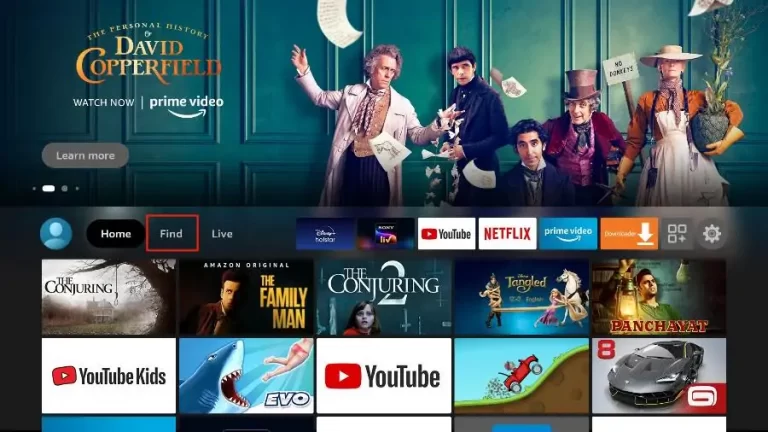
- From the Fire TV home screen, open Settings.
- Select My Fire TV.
- If you already see Developer Options, open it.
- If you do not see it, open About.
- Highlight your Fire TV device name and press the center/select button multiple times until developer mode is enabled.
- Go back one step and open Developer Options.
- Turn on Install Unknown Apps or Apps from Unknown Sources for Downloader.
This is the part that confuses many users because older articles often show one menu path while newer Fire TV versions show another. Once this permission is enabled, the rest of the setup is straightforward.
Helpful official/external references: Downloader on Amazon Appstore | Amazon Fire TV developer options note
How to Download Krooz TV MATE App on Firestick
After sideloading is enabled, install the Downloader app if it is not already on your Firestick. Search for Downloader from the Fire TV search bar and choose the official app published by AFTVnews. Open it, allow permissions, and use either the direct URL or the short code below.
Krooz TV MATE App Installation Details
Krooz Tv MATE App login Details: Works on all Android devices including Firestick, Android TV Box, Android TV, Mobile, Tablet, Shield TV, Google TV, and more.
Download Link: http://aftv.news/1288909
Code for Downloader App: 4909387 or 1288909
Step-by-Step Installation
- Open Downloader on Firestick.
- On the home screen, click the URL/input box.
- Enter 1288909 or 4909387 in the code field if your Downloader version supports short codes.
- If needed, use the direct link: http://aftv.news/1288909.
- Wait for the APK file to download.
- When prompted, click Install.
- After installation, click Done.
- Delete the APK from Downloader to save Firestick storage space.
- Go to your Apps library and launch the Krooz TV MATE app.
If the direct code does not open correctly, try re-entering it slowly, make sure the internet connection is stable, and verify that Downloader still has permission under Install Unknown Apps. Small typing mistakes are one of the most common reasons Firestick installations fail.
Krooz TV MATE App Login Details
Once the app opens, you can sign in using the service credentials assigned to your line. Use the exact information below inside the app login screen:
Your Username: {$service_username}
Your Password: {$service_password}
Enter the username and password exactly as provided. Avoid adding spaces before or after the credentials. If the app supports multiple login methods, use the method recommended by your provider for the fastest setup. If your line includes EPG or playlist details automatically, let the app finish syncing before changing categories or exiting the app.
For account help, billing, or device-specific issues, use live chat support or open support through the Krooz contact page.
Why Firestick Is One of the Best Devices for Krooz TV
Firestick remains one of the easiest devices for IPTV-style app setups because it is small, widely available, and simple enough for non-technical users. It plugs directly into the TV, gets regular Amazon software updates, supports Wi-Fi, and can be moved from one TV to another in seconds.
Another advantage is app flexibility. If one player does not suit your layout preferences, you can often switch to another compatible player and keep using the same subscription details. That is why many users test more than one app over time. Some prefer a simple branded app like Krooz TV MATE, while others later move to interfaces such as TiviMate for multi-playlist management or a different channel layout.
Fire TV devices also work well for households that want a dedicated streaming stick instead of installing and maintaining apps directly on a Smart TV operating system. For many users, this means fewer compatibility issues and easier remote navigation.
Troubleshooting Krooztv App Firestick Issues
1) Developer Options Is Missing
This is one of the biggest current problems. Open Settings > My Fire TV > About, highlight the Fire TV device name, and press the select/OK button several times until developer mode is enabled. Then go back and check for Developer Options again.
2) Downloader Installs but Code Does Not Work
Recheck the code carefully. Try both 4909387 and 1288909. If one code fails, use the direct short URL. Also make sure Downloader has permission under Install Unknown Apps.
3) APK Downloads but Will Not Install
This is usually caused by one of four things: installation permissions are off, the download was interrupted, storage is too low, or the file is corrupted. Delete the download, restart the Firestick, and try again.
4) App Opens but Login Fails
Double-check the username and password. Look for typos, capital letters, or accidental spaces. If credentials still fail, contact support rather than repeatedly guessing, because repeated incorrect entries can waste time and create confusion over whether the problem is the device or the account.
5) App Is Slow or Buffers
Restart the Firestick, close unused apps, reboot the router, and if possible use 5 GHz Wi-Fi. You should also confirm that your internet is stable and that the Firestick has enough free space.
6) Amazon Changed the Menu Again
If your Fire TV menu looks different from screenshots in older tutorials, go to the same core areas: Settings, My Fire TV, About, Developer Options, and Install Unknown Apps. The names may move slightly, but the logic stays the same.
Best Settings After Installing the Krooz TV MATE App
Once installation is complete, spend a few minutes optimizing the app and your Firestick. This saves headaches later and makes the experience smoother:
- Let the app fully sync categories before browsing too quickly
- Restart the app once after first login if data seems incomplete
- Delete the APK installer after setup to free space
- Keep Fire OS updated
- Turn off background apps you do not use
- Use a strong Wi-Fi signal or a better network position
- Reboot the Firestick from time to time for better performance
If your home has multiple TVs or you use several devices, keeping the same setup logic across Firestick, Android TV, and mobile makes support much easier. The Krooz TV MATE app is especially convenient for that because it is designed for Android-based devices broadly rather than one specific box only.
Alternative Player Options for Firestick Users
Some users want a branded app, while others want a different interface, playlist organization, or premium player features. If that sounds like you, Krooz also has related setup content that can help:
- TiviMate on Firestick and Android guide
- Krooz TV app Firestick tutorial
- Krooz TV subscription options
- Free trial information
If you want a cleaner multi-playlist layout, TiviMate is a common alternative on Firestick and Android TV. If you want the simplest possible direct setup, the Krooz TV MATE app may be the faster route. The best choice depends on whether you prioritize simplicity, customization, or extra player features.
Common Mistakes to Avoid
- Forgetting to enable Install Unknown Apps for Downloader
- Typing the short code incorrectly
- Entering username or password with spaces
- Closing the app before the first sync finishes
- Leaving the APK file on the device and filling up storage
- Using an unstable Wi-Fi connection and blaming the app first
- Following an old tutorial without adjusting for current Fire OS menus
Avoiding these mistakes alone can save most users a lot of time. In many cases, Firestick setup problems are not complicated technical faults. They are usually one missed permission, one wrong code, one weak network, or one typo in login details.
FAQ: Krooztv App Firestick
Is the Krooz TV app available directly in the Amazon Store?
In most current Krooz setup guides, the app is installed by sideloading with Downloader rather than by direct Amazon Store installation.
What is the Downloader code for Krooz TV MATE?
You can use 4909387 or 1288909, or try the direct short link if needed.
Why do I not see Developer Options on my Firestick?
On some Fire TV software versions, you need to unlock it first through the About section by clicking the device name several times.
Can I use the Krooz TV MATE app on devices other than Firestick?
Yes. The app works on Android-based devices such as Android TV boxes, Android TV, mobile phones, tablets, Shield TV, and Google TV.
What should I do if my code or link stops working later?
Check the latest support resources, use Krooz live chat, or ask support for the newest app route if Amazon or Downloader behavior changes again.
Final Word
If you want the easiest krooztv app firestick setup, Fire TV Stick is still one of the best devices to use. The key is following the current Fire TV sideload path, installing Downloader correctly, entering the right code or link, and using your exact login details without mistakes. Once the app is installed and synced, you get a clean way to enjoy streaming on a TV with a simple remote-friendly experience.
Need help? Visit the Krooz support page or open live chat.

Great ????????